In Depth Guide to Computer Hardware and Networking Basics
June 6, 2026


Learn how Healthcare Management Administrators Inc optimizes self-funded plans, provider networks, and clinical quality for employers.
October 17, 2026

Upgrade your healthcare claims management for maximum accuracy with Next Level Technologies, serving Columbus, Ohio and Charleston, WV.
October 10, 2026

Discover how a healthcare management services organization boosts practice efficiency, cuts overhead, and protects clinical autonomy.
October 3, 2026
June 6, 2026
Understanding the basics of computer hardware and networking is essential for any business that relies on technology — which, in 2026, means virtually every business.
Quick answer: What are the basics of computer hardware and networking?
The global computer hardware market was valued at approximately $1.2 trillion in 2023 — and it's growing fast. With over 5.3 billion people now connected to the internet, the stakes for getting your hardware and networking right have never been higher.
Yet most business owners and managers don't have a clear picture of what's actually running their operations. That gap leads to slow systems, unexpected downtime, and serious security vulnerabilities.
This guide breaks it all down — clearly and without unnecessary jargon. Whether you're managing a healthcare practice in Columbus, Ohio, running a professional services firm in Charleston, WV, or simply trying to make smarter IT decisions, knowing your hardware and networking fundamentals puts you in control.
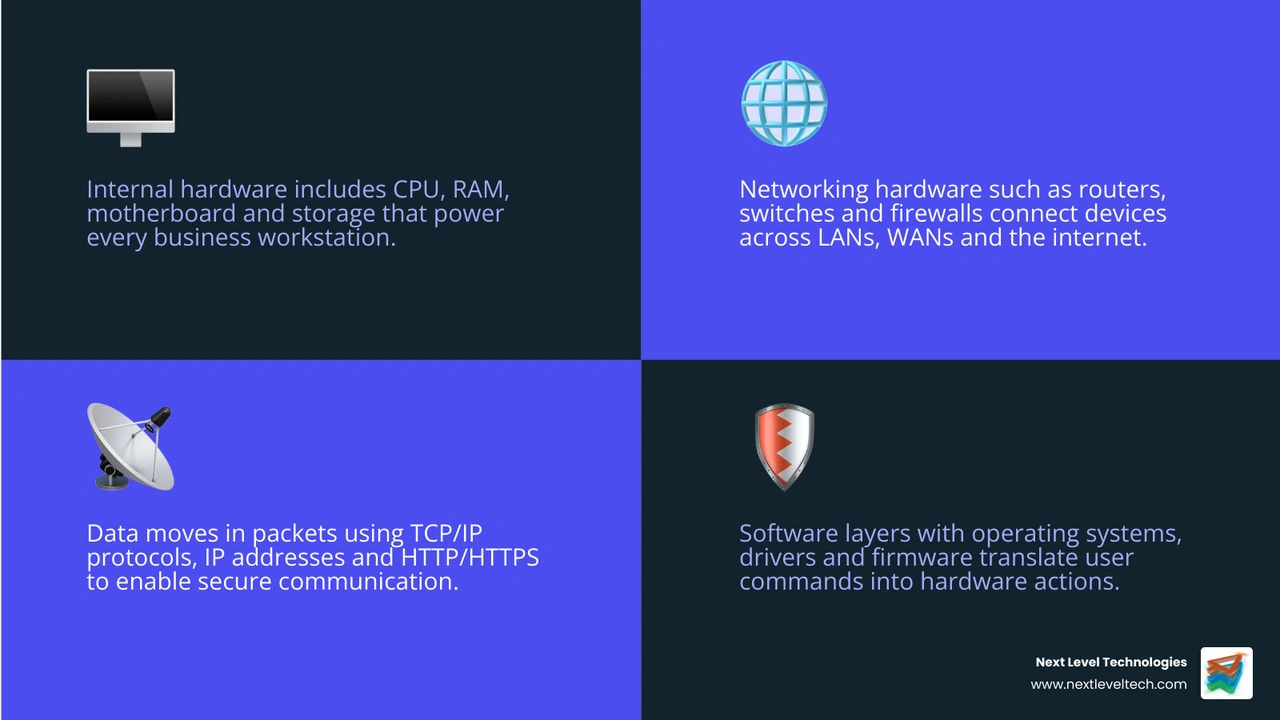
Terms related to basics of computer hardware and networking:
At the simplest level, hardware is the physical technology you can touch, while networking is the system that lets devices communicate. Put them together, and you get the backbone of modern business operations.
Inside every computer are a few core parts doing the heavy lifting:
If you want a broader planning perspective, our Computer Hardware Solutions Guide 2026 is a useful next read.
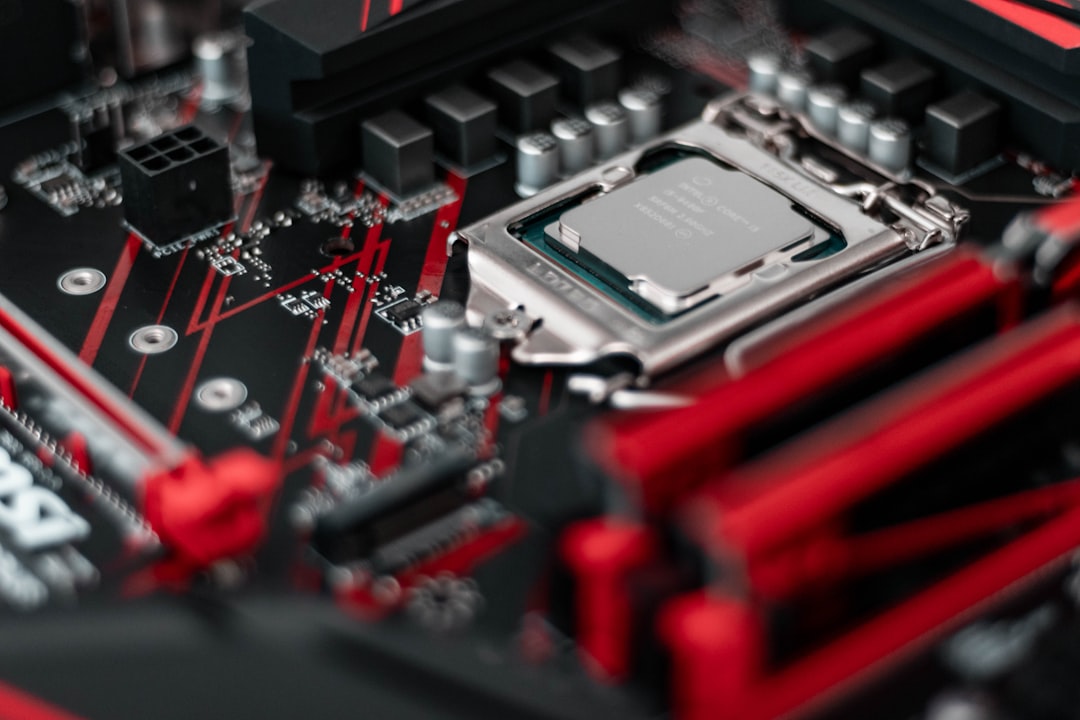
One of the biggest decisions for performance is storage type:
Storage TypeHow It WorksSpeedBest UseHDDSpinning magnetic plattersSlowestLow-cost bulk storageSSDFlash memory, no moving partsFasterGeneral business PCs and laptopsNVMe SSDFlash memory over high-speed motherboard connectionFastestHigh-performance workstations, servers, demanding apps
HDDs still have value for capacity, but SSDs and NVMe drives dramatically improve boot time, file access, and application responsiveness. In plain English: fewer coffee breaks while your PC thinks.
For structured learning, IT Essentials Companion Guide v8 | Cisco Press is a respected reference.
The motherboard is the main circuit board. It provides sockets, slots, and pathways so components can exchange data. Think of it as the city map and road system for your computer.
The CPU, or central processing unit, is the brain. It executes instructions from the operating system and applications. Modern CPUs usually have multiple cores, which means they can handle several tasks at once more efficiently. Clock speed matters too, but core count, cache, and architecture all affect real-world performance.
RAM, or random access memory, is short-term working memory. It is volatile, meaning it loses data when the power turns off. More RAM helps with multitasking, large spreadsheets, browser tabs, accounting software, and line-of-business apps.
Other important internal components include:
Thermal paste also matters more than most people realize. It sits between the CPU and cooler to improve heat transfer. If it dries out or is applied poorly, temperatures rise and performance can drop.
Most business users do not need to build PCs from scratch, but understanding these pieces helps you make better support and upgrade decisions. Our Basic Computer Hardware Networking Guide covers related fundamentals in more detail.
The hardware market keeps expanding. From cloud infrastructure spending that reached $69.7 billion in 2023 to the broader global market's growth trajectory toward $1.8 trillion by 2030, organizations are investing heavily in reliable systems for a reason: bad hardware choices get expensive fast.
External hardware includes the devices users interact with every day. These peripherals handle input, output, storage, and communication.
Common input devices:
Common output devices:
Other common peripherals:
These devices connect through USB, HDMI, DisplayPort, Bluetooth, audio jacks, or network connections. They rely on software drivers so the operating system knows how to talk to them. A printer without the right driver is basically a very expensive paperweight.
For business hardware planning, see Computer Equipment for Business.
This is also where hardware and software interaction becomes easy to understand. When someone clicks a mouse, the operating system receives that signal, the application responds, and the screen updates. Physical device, software instructions, visible result. That teamwork is the whole game.
Hardware alone does nothing useful without software. Software alone does nothing useful without hardware. They are a team, not rivals.
The operating system, or OS, sits between users, applications, and hardware. It manages:
Examples include Windows, macOS, Linux, Android, and iOS. In business environments, the OS is what allows employees to run applications, access files, print documents, and connect to the internet.
There are several software layers involved:
Our article on Computer Organization and Design the Hardware Software Interface dives deeper into this relationship.
BIOS and UEFI are especially important during startup. They perform hardware checks, initialize components, and hand control to the operating system. If firmware is outdated, you may see compatibility issues, security weaknesses, or unreliable performance. Firmware updates should be handled carefully and ideally under IT guidance.
Operating systems also enable networking by managing:
Virtualization adds another layer. A hypervisor allows one physical computer to run multiple virtual machines, each with its own operating system. This is common in servers, labs, cloud environments, and some desktop testing scenarios. For businesses balancing on-premises systems and cloud adoption, Cloud Hardware Infrastructure is worth exploring.
A network is two or more devices connected so they can exchange data and share resources. That sounds simple because, thankfully, networking experts spent decades making it feel simple.
Networks are usually grouped by scale:
For foundational reading, see Chapter 1. Networks and Network Operation and our own Network Networking Definition.
Networks can also be described by topology, or layout:
Most business networks use star topology because it is easier to manage and troubleshoot.
Architecture matters too:
Client-server is usually the better fit for business because it supports centralized security, backups, user management, and compliance.
Why does this matter in 2026? Because connectivity is now tied to productivity. More than 5.3 billion people were using the internet as of 2024, and internet use continues to shape every business function from billing to video meetings. At the same time, over 75 billion IoT devices were expected worldwide by 2025, which means networks are carrying more traffic from more device types than ever before.
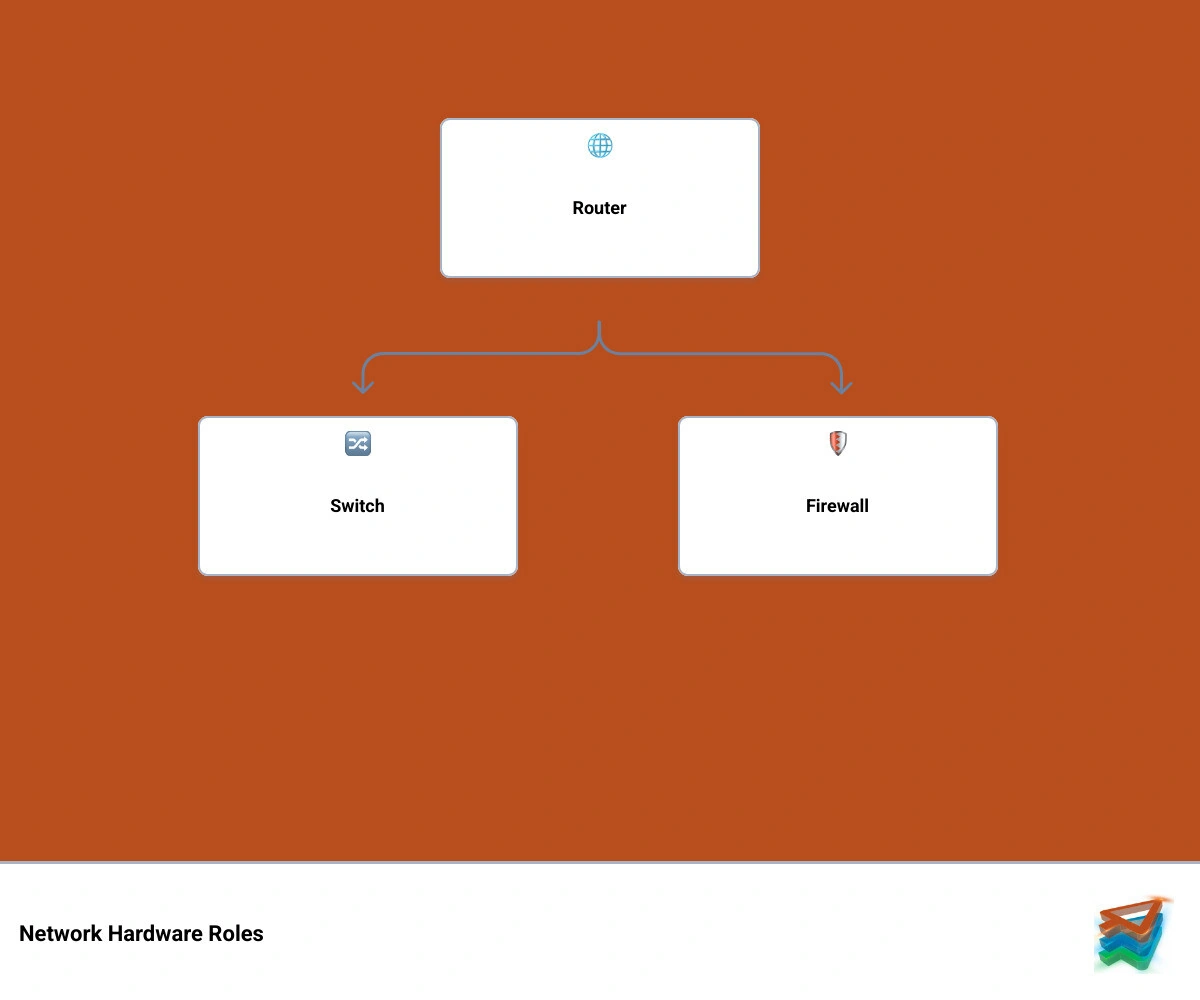
Networking depends on specialized hardware, each with a different job.
For a deeper explanation, visit Hubs Switches Bridges and Routers and Network Security It Services Complete Guide.
Here is the easiest way to picture the big three:
In modern business environments, we strongly recommend business-grade networking hardware rather than consumer gear whenever security, uptime, or compliance matters. That is especially true for healthcare organizations, professional services firms, and non-profits handling sensitive data in Columbus and Charleston. Enterprise-grade hardware typically offers better segmentation, monitoring, redundancy, and security features.
When data moves across a network, it is broken into packets. Each packet carries part of the message plus addressing information so it can reach the correct destination and be reassembled properly.
A few core concepts make this possible:
The internet primarily uses the TCP/IP model. The OSI model is also important for learning and troubleshooting.
Basic OSI layers:
Basic TCP/IP view:
Helpful references include Introduction to Networking and our Network Security for Accountants article for practical security context.
Common protocols include:
IPv4 is still widely used, but IPv6 is increasingly important because it supports far more addresses. That matters as networks expand to support cloud systems, mobile devices, remote workers, and IoT equipment.
Connectivity media also matters:
Wired connections are usually more stable and secure for desktops, servers, phones, and printers. Wireless adds flexibility for laptops, tablets, guest devices, and mobile workflows. The right answer is often a mix of both.
Even the best hardware and networks need care. Dust, heat, aging components, outdated firmware, weak passwords, and poor configuration can all cause trouble.
Common hardware issues:
Common network issues:
A smart maintenance routine includes:
For related guidance, see Computer Hardware Problems and Solutions, Hardware Backup Solutions, and Computer Security Hardware Solutions.
Security deserves special attention. Hardware and networking are now inseparable from cybersecurity. Good prevention includes:
Our team emphasizes both technical experience and ongoing cybersecurity training because prevention is far cheaper than recovery. That matters even more in regulated environments like healthcare.
Lifecycle management is another overlooked issue. Devices do not stay healthy forever. Planning for maintenance, upgrades, warranty tracking, secure disposal, and replacement cycles reduces surprise outages. For organizations that want predictable refreshes without large capital swings, Hardware as a Service can be an effective strategy.
There is no single winner in every situation, but for most office users the biggest performance gains come from:
If a computer still uses a hard disk drive as its main storage, upgrading to an SSD often delivers the most noticeable speed improvement.
Start with the basics:
If your business handles sensitive client, financial, or healthcare data, basic setup is not enough. You need layered security and expert oversight.
Usually, both.
Choose wired for:
Choose wireless for:
A hybrid network gives you the reliability of Ethernet and the convenience of Wi-Fi.
The basics of computer hardware and networking are not just academic IT concepts. They directly affect speed, security, uptime, and employee productivity.
When you understand how internal components, peripherals, operating systems, network devices, and communication protocols work together, you can make smarter decisions about upgrades, support, and risk management. That is true whether you are troubleshooting a single workstation or planning infrastructure for a growing organization.
At Next Level Technologies, we bring more than 20 years of technical experience to businesses in Columbus, Ohio and Charleston, West Virginia. Our teams combine managed IT expertise with extensive cybersecurity training to help small and mid-sized organizations build secure, reliable, scalable environments.
If you want help evaluating your systems, reducing downtime, or strengthening your network security, explore our Managed IT Services and IT Support.
You can also continue learning with related resources:
Understanding technology should not require a decoder ring. With the right guidance, it becomes a practical business advantage.
Learn how Healthcare Management Administrators Inc optimizes self-funded plans, provider networks, and clinical quality for employers.
October 17, 2026
Upgrade your healthcare claims management for maximum accuracy with Next Level Technologies, serving Columbus, Ohio and Charleston, WV.
October 10, 2026
