IT Support Blog

Insights
Don't Get Lost in the Forest: Mastering Active Directory Installation

Don't Get Lost in the Forest: Mastering Active Directory Installation

January 9, 2026

Written by

Why Active Directory Setup is the Foundation of Your Business Network

Active directory setup is the process of installing and configuring Microsoft's directory service to centrally manage users, computers, and resources across your Windows network. Here's the quick roadmap:

Essential Steps for Active Directory Setup:

  1. Plan Your Design - Define your forest, domain structure, and naming conventions before installation
  2. Meet Prerequisites - Ensure Windows Server, static IP, and administrator credentials are ready
  3. Install AD DS Role - Use Server Manager or PowerShell to add Active Directory Domain Services
  4. Promote to Domain Controller - Run the Configuration Wizard to create your forest and domain
  5. Configure DNS and DHCP - Set up critical network services for domain functionality
  6. Create OUs and Users - Build your organizational structure and populate with accounts
  7. Implement Security - Apply best practices for passwords, backups, and monitoring

What is Active Directory? Active Directory (AD) is Microsoft's directory service that acts as a centralized database for managing your network. It handles user authentication through the Kerberos protocol, controls resource access, and enables Single Sign-On (SSO) so employees log in once to access all network resources. For any business with more than a handful of computers, it's the backbone that keeps everything organized and secure.

Why Active Directory Matters for Network Management:

Without Active Directory, you're managing each computer individually—resetting passwords locally, installing software manually, and struggling to control who accesses what. With AD properly configured, you gain centralized control over your entire network from one location. You can enforce security policies across all machines, deploy software to hundreds of computers simultaneously, and ensure only authorized users access sensitive data.

The stakes are high. A poorly configured Active Directory can leave your business vulnerable to security breaches, make compliance audits nightmarish, and turn simple tasks like password resets into hour-long ordeals. Conversely, a well-designed AD environment streamlines IT operations, strengthens security, and scales effortlessly as your business grows.

I'm Steve Payerle, President of Next Level Technologies, and I've guided countless businesses through active directory setup and management since founding our company in 2009. Our team in Columbus, Ohio and Charleston, WV has the extensive cybersecurity training and technical experience to ensure your directory service is both secure and efficient.
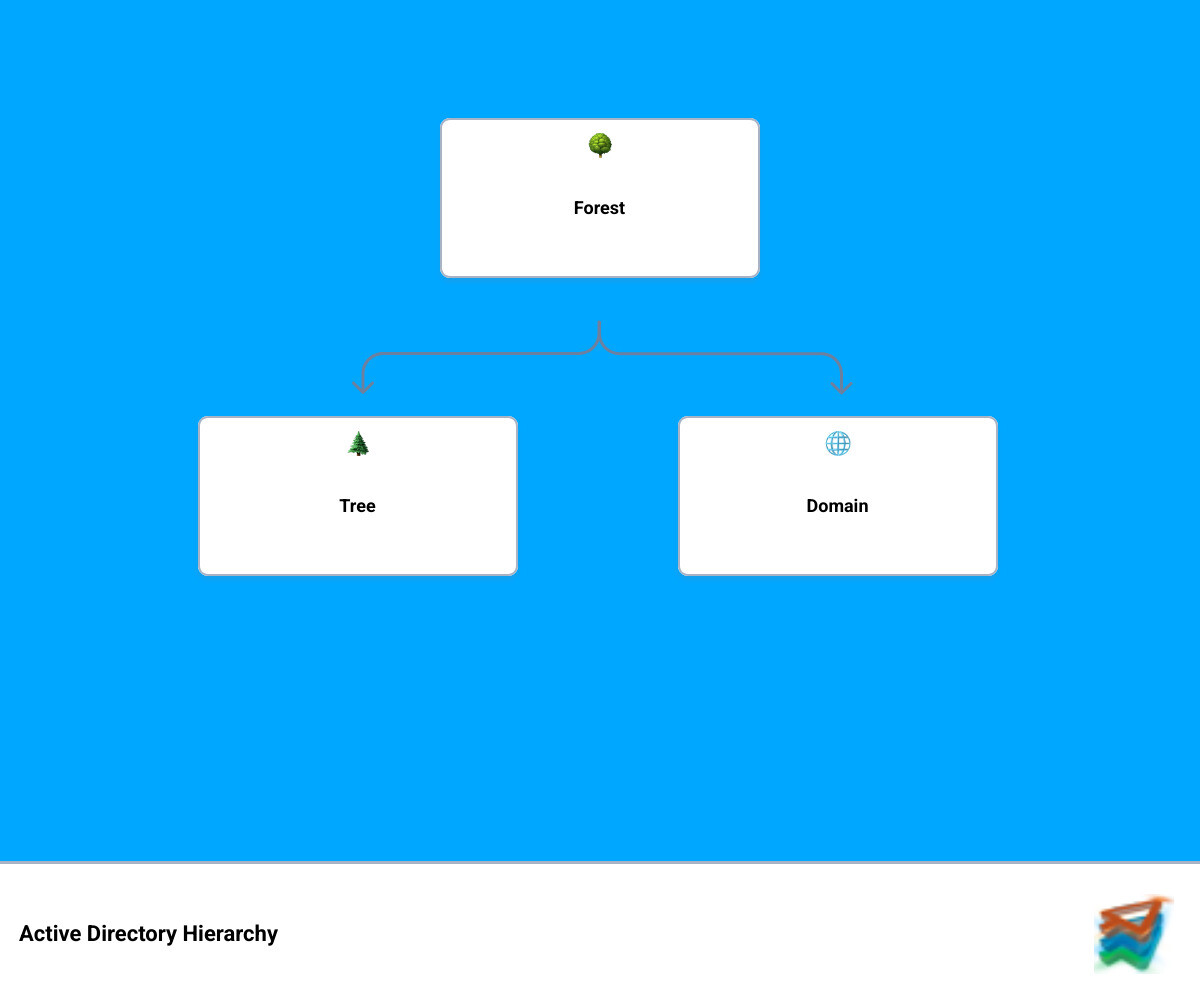
Infographic showing Active Directory hierarchy with Forest at the top containing multiple Trees, each Tree containing multiple Domains, and each Domain containing multiple Organizational Units with user and computer icons inside them - active directory setup infographic hierarchy

Preparing for Your Deployment: Design and Prerequisites

Before we even touch a keyboard for the actual active directory setup, a crucial step is thorough planning. Think of it like building a house: you wouldn't start hammering nails without a blueprint, right? The same goes for your Active Directory. A well-thought-out design is essential for a cost-effective and successful deployment. This initial planning phase helps us align your IT infrastructure with your business needs, ensuring scalability and ease of management for years to come.

We always recommend taking the time to design your logical structure, including forest and domain planning. This involves considering how your organization's hierarchy, geographical locations, and administrative needs translate into the Active Directory structure. Microsoft provides excellent guidance on AD DS Design and Planning that we often leverage. We'll also establish clear naming conventions for your domains, organizational units (OUs), and objects. This seemingly small detail can make a huge difference in managing your environment as it grows. Planning for scalability from the outset is key; an Active Directory that works for 50 users today needs to gracefully handle 500 or 5,000 users tomorrow.

Our IT professionals in Columbus, Ohio, specialize in helping businesses align their IT design with their business structure. We'll work with you to ensure your Active Directory is not just a technical solution, but a strategic asset that supports your operational efficiency and growth.

Hardware and Software Prerequisites

Before diving into the installation, let's ensure your server is ready. Here's a list of prerequisites that are non-negotiable for a smooth active directory setup:

  • Windows Server Operating System: You'll need a server running a supported version of Windows Server. While older documentation might mention Windows Server 2003, for modern deployments, we focus on Windows Server 2016, 2019, or 2022. These versions offer improved security features and improved performance.
  • Minimum RAM and Disk Space: While exact requirements vary by server version and load, generally, we recommend at least 4GB of RAM and sufficient disk space (e.g., 50-60 GB for a lab environment) for the operating system, Active Directory database (NTDS.dit), and log files. The NTDS.dit file is the database file used by Active Directory to store all directory information.
  • NTFS Partition for SYSVOL: The SYSVOL folder, which stores domain-wide public files, must reside on an NTFS-formatted partition. This is a standard requirement for Active Directory Domain Services (AD DS).
  • Administrator Account Credentials: You'll need an account with local administrator privileges on the server you intend to promote to a domain controller. For creating a new forest, you must be logged on as the local Administrator.
  • Static IP Address Configuration: This is critical. Your server destined to be a Domain Controller must have a static IP address configured. Dynamic IP addresses can lead to instability and connectivity issues within your domain. This IP address will also often serve as the primary DNS server for all client machines in your domain.

Meeting these prerequisites ensures that your server has the foundational elements necessary to host Active Directory Domain Services reliably.

Key Design Considerations

Beyond the basic prerequisites, several key design considerations will influence the stability and performance of your Active Directory environment:

  • Domain and Forest Functional Levels: These define the Active Directory features available and the minimum Windows Server operating system version that domain controllers in the domain or forest can run. We'll choose these carefully to balance compatibility with leveraging the latest security and management features.
  • DNS Server Strategy: DNS is absolutely critical for Active Directory. AD DS relies heavily on DNS for name resolution and locating domain controllers. We'll plan for integrated DNS, where your domain controllers also host your DNS zones, ensuring seamless operation.
  • Domain Controller Placement: For larger organizations, strategic placement of domain controllers (DCs) is vital for performance and redundancy. We'll consider geographical locations and network topology to ensure users can always authenticate quickly and efficiently.
  • Planning for Future Growth: Your business isn't static, and neither should your Active Directory be. We design with future expansion in mind, anticipating new users, new offices, and new applications.
  • Aligning IT Design with Business Structure: Active Directory provides a powerful framework for organizing your digital assets. We'll ensure its structure mirrors your organizational chart and administrative needs, simplifying delegated administration and policy enforcement. Our IT professionals in Columbus, Ohio, have experience in this strategic alignment, ensuring your AD infrastructure truly serves your business goals.

The Core of Active Directory Setup: Installation and Promotion

Once our planning is complete and all prerequisites are met, we move to the heart of the active directory setup: installing the Active Directory Domain Services (AD DS) role and promoting our server to a Domain Controller. This is where your server transforms into the central authority for your network.

There are primarily two modern methods for installing AD DS: using Server Manager (the graphical user interface, or GUI) or using Windows PowerShell (for command-line automation). It's worth noting that the traditional Active Directory Domain Services Installation Wizard (dcpromo.exe) is deprecated beginning in Windows Server 2012. We prefer Server Manager for smaller, one-off installations or for those less familiar with scripting, while PowerShell offers efficiency and repeatability for larger or complex deployments.

The goal here is typically to create a new forest, which is the top-level container in Active Directory, encompassing one or more domains. This creates a completely new, independent Active Directory environment. You can find detailed installation instructions on Microsoft Learn, which we'll summarize below.

Step-by-Step: A Guided Active Directory Setup with Server Manager (GUI)

For many, the graphical interface of Server Manager offers a straightforward path to active directory setup. Here’s how we guide our clients through it:

  1. Open Server Manager: Launch Server Manager from your Windows Server desktop.
  2. Start "Add Roles and Features": In Server Manager, click "Manage" in the top right corner, then select "Add Roles and Features."

Server Manager dashboard showing the "Add roles and features" option - active directory setup

  1. Before You Begin: Click "Next."
  2. Installation Type: Select "Role-based or feature-based installation" and click "Next."
  3. Server Selection: Choose the server you want to install AD DS on (it should be the local server by default) and click "Next."
  4. Server Roles: From the list of roles, select "Active Directory Domain Services." When prompted to add required features, click "Add Features," then "Next."
  5. Features: Click "Next" on the Features page (unless you need to add other specific features).
  6. AD DS Confirmation: Review the AD DS information and click "Next."
  7. Confirmation: Confirm your installation selections and click "Install." The installation of the role services will begin. Once complete, click "Close."

Now that the role is installed, we need to promote the server to a Domain Controller:
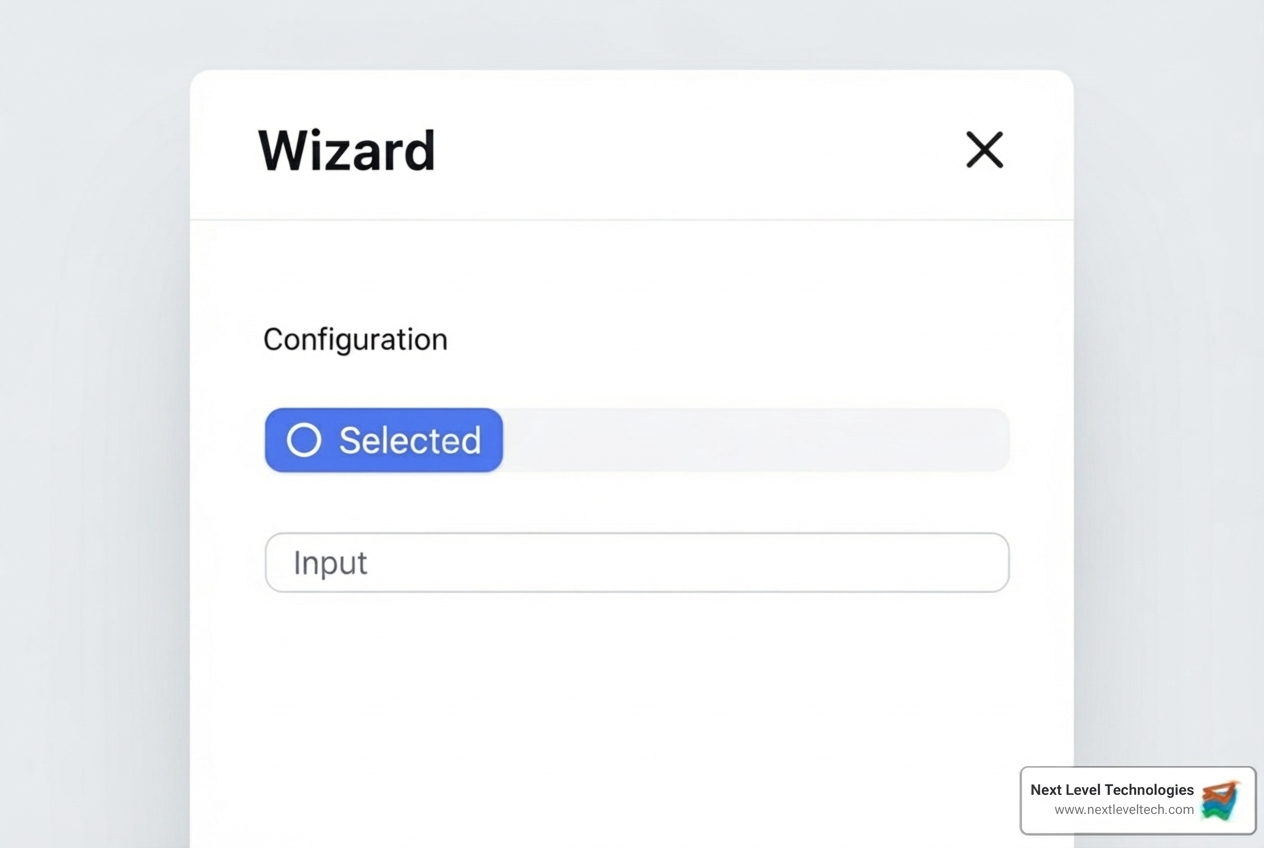
  1. Promote the Server: In Server Manager, you'll see a notification flag (usually yellow) at the top. Click it and select "Promote this server to a domain controller." This launches the Active Directory Domain Services Configuration Wizard.
  2. Deployment Configuration: This is a critical step.
    • Select "Add a new forest."
    • Enter your desired "Root domain name" (e.g., yourcompany.local). We always recommend using a non-routable domain name for internal networks to avoid conflicts with public domain names.
    • Click "Next."

The Deployment Configuration step in the Active Directory Domain Services Configuration Wizard. The "Add a new forest" option is selected, and a text field for "Root domain name" is visible. - active directory setup

  1. Domain Controller Options:
    • Select the "Forest functional level" and "Domain functional level." We generally choose the highest level compatible with all domain controllers you plan to deploy.
    • Ensure "Domain Name System (DNS) server" and "Global Catalog (GC)" are checked.
    • Enter a strong password for the "Directory Services Restore Mode (DSRM) password." This password is vital for disaster recovery scenarios, allowing you to boot the domain controller into a special repair mode. Store it securely!
    • Click "Next."
  2. DNS Options: Ignore any DNS delegation warnings for a new forest and click "Next."
  3. Additional Options: Verify the NetBIOS domain name (usually automatically generated from your root domain name). Click "Next."
  4. Paths: Accept the default paths for the database (NTDS.dit), log files, and SYSVOL folder. These are typically located within the Windows directory. Click "Next." The NTDS.dit file is the core database for Active Directory, storing all directory information.
  5. Review Options: Review all your selections. If everything looks correct, click "Next."
  6. Prerequisites Check: The wizard will perform a prerequisite check. Address any warnings or errors. Once passed, click "Install."
  7. Installation and Reboot: The server will configure AD DS and automatically restart to complete the promotion process.

Congratulations! You’ve just completed a foundational part of your active directory setup.

For the Power User: An Automated Active Directory Setup with PowerShell

For those who love efficiency, automation, and repeatability—or for our experienced IT support teams managing multiple deployments—Windows PowerShell is the tool of choice for active directory setup. The benefits of automation are immense: reduced human error, faster deployments, and consistent configurations across your infrastructure.

Here’s a breakdown of the PowerShell approach:

  1. Install the AD DS Role: We start by installing the Active Directory Domain Services role using the Install-WindowsFeature cmdlet:

    Install-WindowsFeature -Name AD-Domain-Services -IncludeManagementTools -Restart

    The -IncludeManagementTools parameter ensures that the necessary GUI tools like Active Directory Users and Computers are also installed, and -Restart will reboot the server if required.

  2. Promote to a New Forest: After the role is installed, we use cmdlets from the ADDSDeployment module to promote the server. To create a new forest, we use Install-ADDSForest:

    # Define variables for domain name and DSRM password$DomainName = "yourcompany.local"$DSRMPassword = ConvertTo-SecureString "YourStrongDSRMPassword!" -AsPlainText -Force# Install a new AD DS ForestInstall-ADDSForest `    -DomainName $DomainName `    -InstallDNS:$true `    -NoRebootOnCompletion:$false `    -DomainMode "Win2016" ` # Or Win2019, Win2022 depending on your target FL    -ForestMode "Win2016" ` # Or Win2019, Win2022    -LogPath "C:\Windows\NTDS" `    -SysvolPath "C:\Windows\SYSVOL" `    -DatabasePath "C:\Windows\NTDS" `    -Credential (Get-Credential) ` # Prompts for Domain Administrator credentials    -SafeModeAdministratorPassword $DSRMPassword
    • Securely Handling Passwords: Notice how we use ConvertTo-SecureString for the DSRM password. For production environments, we often use Get-Credential to securely prompt for credentials or retrieve them from a secure vault, rather than hardcoding them. This is a best practice for security, especially important given the rising number of cyberattacks targeting small to medium-sized businesses.
    • Test Cmdlets: Before running the full installation, we can use test cmdlets like Test-ADDSForestInstallation to perform prerequisite checks, ensuring our environment is ready and avoiding potential issues during deployment. This is a preferred method for our experienced IT support teams in Columbus, Ohio, and Charleston, WV, as it allows for efficient and error-free deployments.

This automated approach is particularly powerful for large-scale deployments or for building repeatable lab environments for learning and testing.

Post-Installation: Configuring and Populating Your Directory

Once your Domain Controller is up and running, the active directory setup isn't quite finished. Now, it's time to verify the installation and begin configuring your directory to reflect your organization's structure and needs. This involves using tools like Active Directory Users and Computers and the Active Directory Administrative Center to build out your directory structure and manage network objects.

Creating Organizational Units, Users, and Service Accounts

A well-structured Active Directory is a beautiful thing, making administration a breeze. Here's how we start populating your domain:

  • Creating Organizational Units (OUs): OUs are containers within your domain that allow you to organize users, groups, computers, and other OUs. We typically create OUs for departments (e.g., "Sales," "Marketing," "IT"), geographical locations, or even specific functions. This structure is crucial for delegating administration and applying Group Policy Objects (GPOs) efficiently. For example, you might delegate control of the "Sales" OU to a sales manager, allowing them to reset passwords for their team without giving them full domain administrator rights.
  • Creating User Accounts: These are the accounts your employees will use to log in to the network, access resources, and authenticate to applications. When creating user accounts, we always emphasize setting strong password policies (e.g., minimum length, complexity, history) to improve security.
  • Creating Service Accounts: These are special user accounts used by applications or services (e.g., web servers, database services) to interact with Active Directory. It's best practice to create dedicated service accounts for each application, following the principle of Least Privilege—meaning the account only has the permissions it absolutely needs to function. For instance, an ra-service or autoenrollmentbind account might be created for certificate services integration, and added to the 'Cert Publishers' group, but never to the 'Protected Users Security Group' to avoid breaking LDAP Bind, as highlighted in some specialized integrations.
  • Managing Group Memberships: We use groups (Security Groups for permissions, Distribution Groups for email lists) to simplify access control. Instead of assigning permissions to individual users, we assign them to groups, and then add users to those groups. This makes managing resource access much easier and more scalable.

Configuring DNS and DHCP for a Healthy Domain

For your Active Directory to function correctly, its network services—specifically DNS and DHCP—must be properly configured and integrated. They are the unsung heroes of your domain.

  • The Critical Role of DNS in Active Directory: Active Directory relies heavily on DNS for name resolution. Domain Controllers register various Service Locator (SRV) records in DNS, which client computers use to locate DCs, Global Catalog servers, and other essential services. If DNS isn't working, your Active Directory essentially breaks down.
    • Verifying DNS SRV Records: After active directory setup, we always verify that the necessary SRV records (e.g., _ldap._tcp.dc._msdcs.yourdomain.local) are correctly registered in your DNS zone.
    • Forward and Reverse Lookup Zones: Your DNS server, often hosted on your Domain Controller, will contain a forward lookup zone for your domain (e.g., yourcompany.local) and usually a reverse lookup zone to resolve IP addresses back to hostnames.
  • Configuring DHCP Scopes: DHCP (Dynamic Host Configuration Protocol) assigns IP addresses and other network configuration parameters to client devices automatically.
    • Installing the DHCP Role: If not already installed, we'll add the DHCP Server role via Server Manager.
    • Configuring DHCP Scopes: We create a new scope, defining an IP address range, subnet mask, lease duration, and other options.
    • Setting DNS Server Option in DHCP: Crucially, within your DHCP scope options, we'll set the primary DNS server to the IP address of your Domain Controller. This ensures that all client machines receive the correct DNS server information upon connecting to the network.
    • Authorizing DHCP Server: For security, the DHCP server must be authorized within Active Directory. This prevents rogue DHCP servers from handing out incorrect IP addresses.

Properly configured DNS and DHCP ensure that client computers can find and communicate with your Domain Controllers, authenticate users, and access domain resources seamlessly.

Securing and Maintaining Your Active Directory Environment

An active directory setup is not a "set it and forget it" task. In today's threat landscape, maintaining and securing your Active Directory environment is paramount. With cyberattacks becoming more sophisticated, especially against SMBs, neglecting AD security is like leaving your front door wide open. Our team, with extensive cybersecurity training, particularly our experts in Charleston, WV, understands the critical importance of these ongoing efforts.

Here are some best practices we implement and recommend:

  • Regular Backups: Implement a robust backup strategy that includes regular backups of your Active Directory state and the NTDS.dit file. This is your safety net for disaster recovery. Remember the 3-2-1 backup rule: 3 copies of data, on 2 different media, with 1 copy offsite.
  • Monitoring for Unusual Activity: Deploy tools and processes to continuously monitor your Active Directory for suspicious activities, such as unusual login patterns, unauthorized access attempts, or changes to critical security groups. Some breaches involve weeks of quiet access before damage occurs.
  • Strong Password Policies and MFA: Enforce strong, complex password policies (at least 14 characters) and require Multi-Factor Authentication (MFA) for all administrative accounts and, ideally, for all users. This significantly reduces the risk of credential theft.
  • Restricting Administrative Access: Adhere strictly to the principle of Least Privilege. Only grant administrative permissions to those who absolutely need them, and only for the tasks they perform. Regularly review administrative group memberships.
  • Read-Only Domain Controllers (RODCs): For branch offices or less secure physical locations, consider deploying Read-Only Domain Controllers (RODCs). RODCs improve security by not storing a writable copy of the Active Directory database, making them less vulnerable to compromise. They can also cache credentials for users in that location, improving logon times even during WAN outages.
  • Routine Security Audits: Conduct routine security audits and penetration tests of your Active Directory environment (every 6-12 months). This helps identify vulnerabilities before attackers do. Our cybersecurity-trained staff in Charleston, WV, regularly performs these assessments to ensure our clients' environments are resilient.
  • Keep Software Updated: Regularly apply patches and security updates to your Windows Servers and Active Directory components. Outdated software is a common entry point for attackers.

By adopting these practices, we ensure your Active Directory remains a secure and reliable foundation for your business operations.

Frequently Asked Questions about Active Directory

We often encounter common questions about Active Directory. Here are some of the most frequent ones:

What is a Domain Controller and why do I need one?

A Domain Controller (DC) is a server with the Active Directory Domain Services (AD DS) server role installed that has specifically been promoted to a domain controller. Its primary role is to host a copy of the AD DS database (the NTDS.dit file), providing authentication and authorization services for users and computers within its domain.

You need a Domain Controller because it centralizes user authentication, manages access to network resources, and enforces security policies. Without it, you'd have to manage each computer and user individually, which quickly becomes unmanageable and insecure in a business environment. For redundancy and high availability, we always recommend having at least two Domain Controllers in your environment. If one DC fails, the other can seamlessly take over, preventing network downtime.

Can I set up Active Directory at home to learn?

Absolutely! Setting up Active Directory in a home lab environment is an excellent way to learn and test your skills without impacting a production network. Many of our team members honed their skills this way.

To do this, you'll typically need:

  • Virtualization Software: Programs like Oracle VirtualBox or VMware Workstation Player allow you to run multiple virtual machines (VMs) on a single physical computer.
  • Evaluation Versions of Windows Server: Microsoft provides free evaluation versions of Windows Server (e.g., Windows Server 2022) that you can download and install on a VM.
  • Evaluation Versions of Client OS: You might also want a Windows 10 or 11 Enterprise evaluation ISO to set up a client machine to join your domain.

There are many great resources available, including videos like How to Setup a Basic Home Lab Running Active Directory (Oracle VirtualBox), that can walk you through the process. It's a fantastic hands-on learning experience!

What's the difference between a domain and a forest?

Think of it like this:

  • Domain: A domain is a logical grouping of network objects (users, computers, printers) that share a common database, security policies, and administrative boundaries. It's a fundamental unit of logical structure in Active Directory. For example, yourcompany.local would be a domain.
  • Forest: A forest is a collection of one or more Active Directory domains that share a common schema (the definition of all objects and attributes in AD), configuration, and global catalog. All domains in a forest trust each other transitively, meaning if Domain A trusts Domain B, and Domain B trusts Domain C, then Domain A implicitly trusts Domain C. The forest represents the security boundary for your entire Active Directory environment.

So, a domain is a segment of your network managed by AD, while a forest is the overarching structure that contains all your domains, establishing a common foundation and trust relationships between them.

Conclusion

Mastering active directory setup is truly the foundation of a well-managed, secure, and scalable business network. We've walked through the critical steps, from meticulous planning and meeting prerequisites to the actual installation using Server Manager or PowerShell, and finally, the essential post-installation configurations of OUs, users, DNS, and DHCP. We've also emphasized the ongoing vigilance required to secure and maintain this vital component of your IT infrastructure.

A properly implemented and managed Active Directory streamlines operations, improves security through robust authentication and access control, and provides the scalability your business needs to grow. It simplifies tasks that would otherwise be complex and time-consuming, freeing up your team to focus on strategic initiatives.

For complex deployments, migrations, or ongoing maintenance, partnering with experienced IT professionals is often the smartest move. Our team at Next Level Technologies, with locations in Columbus, Ohio, and Charleston, WV, brings extensive cybersecurity training and technical expertise to ensure your Active Directory environment is not just functional, but optimized, secure, and aligned with your business objectives.

Don't get lost in the forest of complex configurations. Let us guide you to a clear, efficient, and secure Active Directory environment.

Explore our Managed IT Services and Support

Next Level Technologies

Our Latest Blog Posts

The A-Z of Cybersecurity: Understanding Core Concepts

Unlock secure access with Identity Access Management. Understand its functions, benefits, and best practices for your organization.

January 8, 2026

From Glitches to Greatness: The Small Business Guide to Tech Support

Optimize your business. Get expert Small business tech support for proactive IT, cybersecurity, and scalable solutions. Achieve greatness!

January 7, 2026